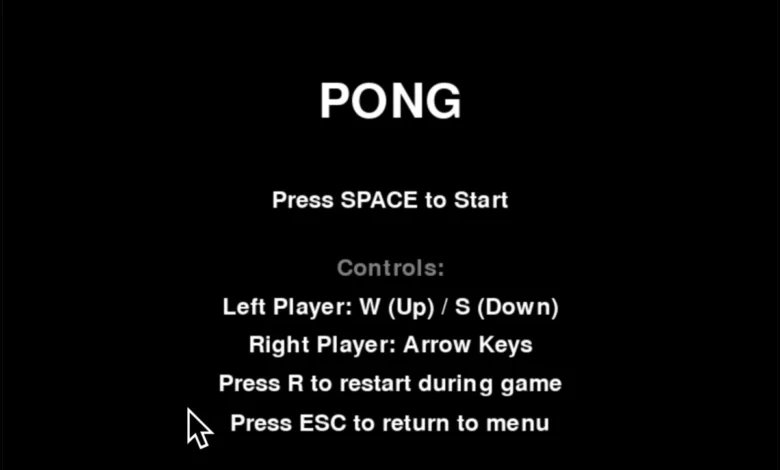
The genesis of interactive entertainment can be traced back to a simple yet revolutionary concept: Pong. First introduced to the public in 1972, this groundbreaking arcade game, often described as a digital rendition of table tennis, laid the foundation for the vast video game industry we know today. At its core, Pong features two vertical paddles positioned on either side of a screen, controlled by players to bounce a virtual ball back and forth. The objective is straightforward: prevent the ball from passing your paddle. A missed return results in a point for the opponent. Developed and popularized by Atari, the game’s name itself is a nod to the percussive sound of a ping-pong ball. Over the decades, Pong has seen numerous iterations, each introducing novel features and gameplay mechanics, yet its fundamental appeal has remained constant.
In a modern exploration of this seminal game, developers are leveraging contemporary tools to recreate its classic experience. This article delves into the process of building a functional Pong game using Python, a versatile programming language, and its powerful Pygame library, guided by the capabilities of Anthropic’s Claude AI. The goal is to provide a comprehensive understanding of the code, its structure, and the underlying principles that bring this nostalgic game to life on contemporary computing platforms.
The Genesis of a Digital Classic: Atari and the Birth of Pong
Pong emerged during a nascent era of computing, a time when digital entertainment was a novel and largely unexplored frontier. Atari, under the visionary leadership of Nolan Bushnell and Ted Dabney, was at the forefront of this burgeoning field. Their initial foray into the arcade market with Computer Space in 1971, while innovative, proved to be too complex for the average consumer. Recognizing the need for a simpler, more accessible gaming experience, the Atari team, particularly engineer Allan Alcorn, set out to create a game that would appeal to a broader audience.
The inspiration for Pong was directly drawn from the Magnavox Odyssey, the first home video game console, which featured a rudimentary tennis game. However, Atari’s implementation was significantly more refined and engaging for an arcade setting. The game’s design was intentionally minimalist: two paddles, a ball, and a score. This simplicity was its genius, allowing players to immediately grasp the gameplay without extensive tutorials. When Pong was released in arcades, it was an unprecedented success, generating significant revenue and sparking widespread public fascination with video games. Its cultural impact was profound, cementing the concept of interactive electronic entertainment in the public consciousness and paving the way for future advancements in game design and technology.
Recreating Pong: A Python and Pygame Implementation
The following Python code, developed with the assistance of Claude AI, provides a robust and playable version of the classic Pong game. It incorporates essential features such as two responsive paddles, a dynamic ball, a scoring system, and the ability to initiate new games, offering a faithful recreation of the arcade experience.
import pygame
import sys
import random

# Initialize Pygame
pygame.init()

# Constants
SCREEN_WIDTH = 800
SCREEN_HEIGHT = 600
PADDLE_WIDTH = 15
PADDLE_HEIGHT = 90
BALL_SIZE = 15
PADDLE_SPEED = 7
BALL_SPEED_X = 6
BALL_SPEED_Y = 6

# Colors
BLACK = (0, 0, 0)
WHITE = (255, 255, 255)
GRAY = (128, 128, 128)

class Paddle:
    def __init__(self, x, y):
        self.rect = pygame.Rect(
            x, y, PADDLE_WIDTH, PADDLE_HEIGHT)
        self.speed = PADDLE_SPEED

    def move_up(self):
        if self.rect.top > 0:
            self.rect.y -= self.speed

    def move_down(self):
        if self.rect.bottom < SCREEN_HEIGHT:
            self.rect.y += self.speed

    def draw(self, screen):
        pygame.draw.rect(screen, WHITE, self.rect)

class Ball:
    def __init__(self):
        self.rect = pygame.Rect(
            SCREEN_WIDTH // 2,
            SCREEN_HEIGHT // 2,
            BALL_SIZE,
            BALL_SIZE)
        self.reset_ball()

    def reset_ball(self):
        self.rect.center = (SCREEN_WIDTH // 2,
            SCREEN_HEIGHT // 2)
        self.speed_x = BALL_SPEED_X * random.choice([-1, 1])
        self.speed_y = BALL_SPEED_Y * random.choice([-1, 1])

    def move(self):
        self.rect.x += self.speed_x
        self.rect.y += self.speed_y

        # Bounce off top and bottom walls
        if (self.rect.top <= 0
            or self.rect.bottom >= SCREEN_HEIGHT):
            self.speed_y = -self.speed_y

    def draw(self, screen):
        pygame.draw.rect(screen, WHITE, self.rect)

class PongGame:
    def __init__(self):
        self.screen = pygame.display.set_mode(
            (SCREEN_WIDTH, SCREEN_HEIGHT))
        pygame.display.set_caption("Pong Game")
        self.clock = pygame.time.Clock()

        # Create game objects
        self.left_paddle = Paddle(
            30, SCREEN_HEIGHT // 2 - PADDLE_HEIGHT // 2)
        self.right_paddle = Paddle(
            SCREEN_WIDTH - 30 - PADDLE_WIDTH,
            SCREEN_HEIGHT // 2 - PADDLE_HEIGHT // 2)
        self.ball = Ball()

        # Scores
        self.left_score = 0
        self.right_score = 0
        self.font = pygame.font.Font(None, 74)
        self.small_font = pygame.font.Font(None, 36)

        # Game state
        self.game_state = "menu"  # "menu", "playing", "paused"

    def handle_collision(self):
        # Ball collision with paddles
        if self.ball.rect.colliderect(self.left_paddle.rect):
            # Only bounce if moving toward paddle
            if self.ball.speed_x < 0:
                self.ball.speed_x = -self.ball.speed_x
                # Add some variation based on where ball hits paddle
                hit_pos = (self.ball.rect.centery - self.left_paddle.rect.centery
                          ) / (PADDLE_HEIGHT / 2)
                self.ball.speed_y += hit_pos * 2

        if self.ball.rect.colliderect(self.right_paddle.rect):
            # Only bounce if moving toward paddle
            if self.ball.speed_x > 0:
                self.ball.speed_x = -self.ball.speed_x
                # Add some variation based on where ball hits paddle
                hit_pos = (self.ball.rect.centery - self.right_paddle.rect.centery
                          ) / (PADDLE_HEIGHT / 2)
                self.ball.speed_y += hit_pos * 2

        # Limit ball speed
        max_speed = 12
        if abs(self.ball.speed_y) > max_speed:
            self.ball.speed_y = max_speed if self.ball.speed_y > 0 else -max_speed

    def check_scoring(self):
        # Check if ball went off screen
        if self.ball.rect.left <= 0:
            self.right_score += 1
            self.ball.reset_ball()
        elif self.ball.rect.right >= SCREEN_WIDTH:
            self.left_score += 1
            self.ball.reset_ball()

    def handle_input(self):
        keys = pygame.key.get_pressed()

        if self.game_state == "playing":
            # Left paddle controls (W/S)
            if keys[pygame.K_w]:
                self.left_paddle.move_up()
            if keys[pygame.K_s]:
                self.left_paddle.move_down()

            # Right paddle controls (UP/DOWN arrows)
            if keys[pygame.K_UP]:
                self.right_paddle.move_up()
            if keys[pygame.K_DOWN]:
                self.right_paddle.move_down()

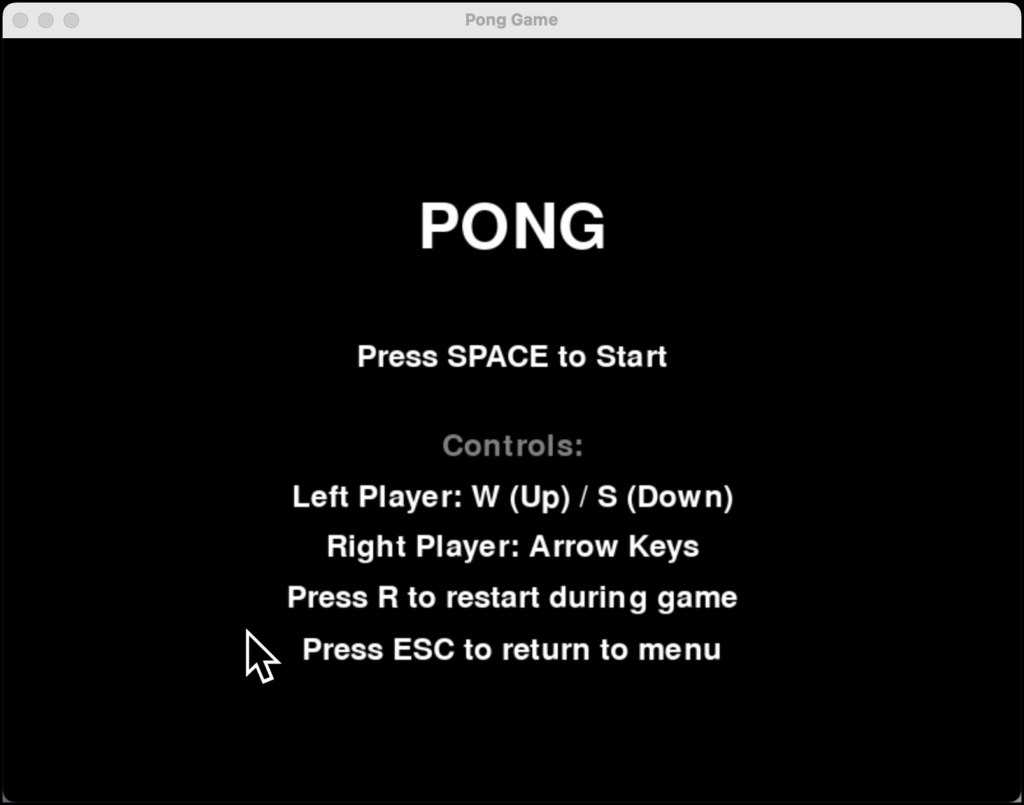
    def draw_menu(self):
        self.screen.fill(BLACK)

        title_text = self.font.render("PONG", True, WHITE)
        title_rect = title_text.get_rect(
            center=(SCREEN_WIDTH // 2, 150))
        self.screen.blit(title_text, title_rect)

        start_text = self.small_font.render(
            "Press SPACE to Start", True, WHITE)
        start_rect = start_text.get_rect(
            center=(SCREEN_WIDTH // 2, 250))
        self.screen.blit(start_text, start_rect)

        controls_text = [
            "Controls:",
            "Left Player: W (Up) / S (Down)",
            "Right Player: Arrow Keys",
            "Press R to restart during game",
            "Press ESC to return to menu"
        ]

        for i, text in enumerate(controls_text):
            rendered_text = self.small_font.render(
                text, True, GRAY if i == 0 else WHITE)
            text_rect = rendered_text.get_rect(
                center=(SCREEN_WIDTH // 2, 320 + i * 40))
            self.screen.blit(rendered_text, text_rect)

    def draw_game(self):
        self.screen.fill(BLACK)

        # Draw center line
        for i in range(0, SCREEN_HEIGHT, 20):
            if i % 40 == 0:
                pygame.draw.rect(
                    self.screen,
                    WHITE,
                    (SCREEN_WIDTH // 2 - 2, i, 4, 10))

        # Draw paddles and ball
        self.left_paddle.draw(self.screen)
        self.right_paddle.draw(self.screen)
        self.ball.draw(self.screen)

        # Draw scores
        left_score_text = self.font.render(
            str(self.left_score), True, WHITE)
        right_score_text = self.font.render(
            str(self.right_score), True, WHITE)

        self.screen.blit(left_score_text, (SCREEN_WIDTH // 4, 50))
        self.screen.blit(
            right_score_text,
            (3 * SCREEN_WIDTH // 4 - right_score_text.get_width(),
             50))

        # Draw instructions
        instruction_text = self.small_font.render(
            "Press ESC for menu, R to restart", True, GRAY)
        instruction_rect = instruction_text.get_rect(
            center=(SCREEN_WIDTH // 2, SCREEN_HEIGHT - 30))
        self.screen.blit(instruction_text, instruction_rect)

    def reset_game(self):
        self.left_score = 0
        self.right_score = 0
        self.ball.reset_ball()
        self.left_paddle.rect.y = (SCREEN_HEIGHT // 2 -
            PADDLE_HEIGHT // 2)
        self.right_paddle.rect.y = (SCREEN_HEIGHT // 2 -
            PADDLE_HEIGHT // 2)

    def run(self):
        running = True

        while running:
            for event in pygame.event.get():
                if event.type == pygame.QUIT:
                    running = False

                if event.type == pygame.KEYDOWN:
                    if (event.key == pygame.K_SPACE
                        and self.game_state == "menu"):
                        self.game_state = "playing"
                        self.reset_game()
                    elif event.key == pygame.K_ESCAPE:
                        self.game_state = "menu"
                    elif (event.key == pygame.K_r
                        and self.game_state == "playing"):
                        self.reset_game()

            if self.game_state == "menu":
                self.draw_menu()
            elif self.game_state == "playing":
                self.handle_input()
                self.ball.move()
                self.handle_collision()
                self.check_scoring()
                self.draw_game()

            pygame.display.flip()
            self.clock.tick(60)

        pygame.quit()
        sys.exit()

if __name__ == "__main__":
    game = PongGame()
    game.run()
This comprehensive implementation offers a polished Pong experience, featuring:
Game Features:
- Two Player Mode: Facilitates direct head-to-head competition.
- Score Tracking: Accurately records points for each player.
- Game States: Seamlessly transitions between a title menu, active gameplay, and options to restart or return to the menu.
- Responsive Controls: Ensures immediate feedback for player actions.
Controls:
- Left Player: ‘W’ key to move up, ‘S’ key to move down.
- Right Player: Up Arrow key to move up, Down Arrow key to move down.
- Menu Navigation: Press ‘SPACE’ to start a new game from the menu.
- In-Game Options: Press ‘R’ to reset the current game score and ball position. Press ‘ESC’ to return to the main menu.
Game Mechanics:
- Ball Physics: The ball’s trajectory is influenced by paddle collisions, introducing an element of skill and unpredictability.
- Paddle Interaction: Paddles accurately detect and react to ball collisions, ensuring fair gameplay.
- Scoring Logic: Points are awarded when a player fails to return the ball, triggering a reset for the next round.
To Run the Game:
- Prerequisites: Ensure you have Python installed on your system. Install the Pygame library by opening your terminal or command prompt and typing:
pip install pygame. - Save the Code: Copy the provided Python code and save it as a file named
pong.py(or any other.pyextension). - Execution: Navigate to the directory where you saved the file in your terminal and run the command:
python pong.py.
The game presents a clean menu interface and smooth 60 frames per second gameplay. The ball’s movement incorporates a degree of randomization, enhancing replayability, while paddle collisions are designed to allow players to subtly influence the ball’s angle of return, adding a strategic layer to the simple mechanics.
Deconstructing the Code: A Deep Dive into Pong’s Architecture
To fully appreciate the creation of this digital classic, a detailed examination of the Python code is essential. The program is structured using object-oriented principles, dividing the game’s logic into distinct, manageable components.
Code Structure Overview
The project is built around three primary classes, each responsible for a specific aspect of the game:
PaddleClass: Manages the behavior and appearance of the player-controlled paddles.BallClass: Handles the movement, collision detection, and reset logic for the game’s central projectile.PongGameClass: Acts as the overarching manager, coordinating all game elements, handling user input, managing game states, and orchestrating the rendering process.
1. Initialization and Constants
The program begins with the essential setup:
pygame.init()
# Constants define game dimensions and speeds
SCREEN_WIDTH = 800
SCREEN_HEIGHT = 600
PADDLE_SPEED = 7
This initialization phase sets up Pygame, preparing it for graphical operations. Crucially, it defines a set of constants that govern the game’s parameters, such as screen dimensions (SCREEN_WIDTH, SCREEN_HEIGHT), and movement speeds (PADDLE_SPEED). Utilizing constants enhances code readability and simplifies future modifications. For instance, if one wished to increase the game’s difficulty by speeding up the paddles, only the PADDLE_SPEED constant would need adjustment.
2. The Paddle Class
Each paddle in the game is instantiated from the Paddle class:
class Paddle:
    def __init__(self, x, y):
        self.rect = pygame.Rect(x, y, PADDLE_WIDTH, PADDLE_HEIGHT)
The __init__ method initializes a paddle object. It creates a pygame.Rect instance, which is a fundamental Pygame object representing rectangular areas. This rect attribute stores the paddle’s position (x, y coordinates) and dimensions (width, height). The pygame.Rect object is particularly useful as it provides built-in methods for collision detection.
The Paddle class includes methods for movement:
move_up(): Decreases the paddle’s y-coordinate to move it upwards.move_down(): Increases the paddle’s y-coordinate to move it downwards.
These movement methods incorporate boundary checks to ensure the paddles remain within the confines of the game screen:
if self.rect.top > 0:  # Don't go above screen
if self.rect.bottom < SCREEN_HEIGHT:  # Don't go below screen
The draw() method is responsible for rendering the paddle onto the game screen using a solid white rectangle.
3. The Ball Class
The Ball class encapsulates the properties and behaviors of the game’s ball:
class Ball:
    def reset_ball(self):
        self.speed_x = BALL_SPEED_X * random.choice([-1, 1])
        self.speed_y = BALL_SPEED_Y * random.choice([-1, 1])
The __init__ method places the ball at the center of the screen and calls reset_ball(). The reset_ball() method is crucial for restarting the ball’s movement after a score. It centers the ball and assigns it a random initial velocity component in both the x and y directions, ensuring that each serve is unpredictable.
The move() method updates the ball’s position based on its current velocity and handles collisions with the top and bottom boundaries of the screen, reversing its vertical speed (speed_y) to simulate a bounce.
The draw() method renders the ball as a white square on the game screen.
4. Main Game Class Structure: PongGame
The PongGame class serves as the central orchestrator of the entire game. It initializes all game objects, manages game states, processes user input, updates game logic, and handles rendering.
Game States:
A key element of the PongGame class is its management of game states:
self.game_state = "menu" # "menu", "playing", "paused"The game_state variable dictates the current mode of the game. Possible states include "menu" (displaying the title screen), "playing" (active gameplay), and potentially others like "paused" (though not explicitly implemented in this version, it’s a common extension). This state management system ensures that the game behaves correctly based on its current context, such as only accepting movement input when in the "playing" state.
Game Loop:
The core of the game’s execution resides within the run() method, which contains the main game loop:
def run(self):
    while running:
        # Handle events (keyboard, quit)
        # Update game logic based on current state
        # Draw everything
        # Control frame rate (60 FPS)
This loop continuously:
- Handles Events: Processes user inputs (key presses, mouse movements) and system events (like closing the window).
- Updates Game Logic: Modifies game elements based on their current state and interactions. This includes ball movement, collision checks, and score updates.
- Renders Graphics: Draws all game elements onto the screen.
- Controls Frame Rate: Uses
self.clock.tick(60)to limit the game’s execution to approximately 60 frames per second, ensuring consistent performance across different hardware.
5. Collision Detection
The handle_collision() method is one of the most critical and intricate parts of the game logic. It determines how the ball interacts with the paddles:
def handle_collision(self):
    if self.ball.rect.colliderect(self.left_paddle.rect):
        # Only bounce if moving toward paddle
        if self.ball.speed_x < 0:
            self.ball.speed_x = -self.ball.speed_x
This section checks for overlaps between the ball’s rectangle (self.ball.rect) and the paddles’ rectangles. A crucial condition (if self.ball.speed_x < 0 for the left paddle) ensures that the ball only bounces if it’s moving towards the paddle. This prevents the ball from getting stuck if it passes through the paddle slightly.
A sophisticated aspect of the collision logic introduces a variable bounce angle:
hit_pos = (self.ball.rect.centery -
           self.left_paddle.rect.centery
           ) / (PADDLE_HEIGHT / 2)
self.ball.speed_y += hit_pos * 2
This calculation determines where on the paddle the ball makes contact. If the ball hits the top half of the paddle, hit_pos will be negative, causing the ball’s vertical speed (speed_y) to increase upwards. Conversely, hitting the bottom half results in a downward increase in speed_y. This adds a layer of skill, allowing players to influence the ball’s trajectory.
Furthermore, a max_speed variable is enforced to prevent the ball from becoming excessively fast, maintaining playability.
6. Input Handling
The handle_input() method continuously monitors keyboard input:
def handle_input(self):
    keys = pygame.key.get_pressed()
    if keys[pygame.K_w]:
        self.left_paddle.move_up()
By using pygame.key.get_pressed(), the game checks the state of all keys in real-time. This allows for smooth, continuous paddle movement when a key is held down, as opposed to single-step movements triggered by individual key press events. The input handling is context-aware, meaning different key bindings are checked depending on the current self.game_state.
7. Scoring System
The check_scoring() method updates the score when a player misses a return:
def check_scoring(self):
    if self.ball.rect.left <= 0:  # Ball went off left side
        self.right_score += 1
        self.ball.reset_ball()
This function checks if the ball has moved beyond the left or right edges of the screen. If it has, the opposing player’s score is incremented, and the ball.reset_ball() method is called to re-center the ball and initiate a new serve.
8. Rendering System
The game employs distinct drawing functions for different states to present the user interface and gameplay elements:
draw_menu(): Renders the title screen, including the game title, instructions, and start prompt.draw_game(): Displays the active gameplay, including the paddles, ball, scores, and a decorative center line.
The center dashed line is dynamically drawn using a for loop:
for i in range(0, SCREEN_HEIGHT, 20):
    if i % 40 == 0:  # Only draw every other dash
        pygame.draw.rect(
            self.screen,
            WHITE,
            (SCREEN_WIDTH // 2 - 2, i, 4, 10))
This loop iterates through vertical positions, drawing small white rectangles at regular intervals to create the visual effect of a dashed line down the middle of the court.
9. Game Flow and State Transitions
The run() method orchestrates the game’s progression through its various states:
- Initialization: The
PongGameobject is created, setting up the game window, paddles, ball, and initial score. - Event Handling: The game loop continuously checks for user input and system events.
- State Management: Based on the
self.game_state, the game either draws the menu or proceeds with gameplay logic. - Gameplay Logic (if
playing):- Input is processed to move paddles.
- The ball’s position is updated.
- Collisions between the ball and paddles are detected and handled.
- Scoring conditions are checked.
- Rendering: The appropriate screen (menu or game) is drawn.
- Display Update:
pygame.display.flip()updates the entire screen to show the newly rendered frame. - Frame Rate Control:
self.clock.tick(60)ensures the game runs at a consistent speed.
The game transitions between states via specific key presses: SPACE to move from the menu to playing, and ESC to return to the menu from playing. The ‘R’ key provides a quick way to reset the game within a playing session.
Key Programming Concepts Employed
This Pong implementation showcases several fundamental programming concepts essential for game development:
- Object-Oriented Programming (OOP): The use of classes (
Paddle,Ball,PongGame) promotes modularity, reusability, and organization. - Game Loop: The continuous cycle of event handling, updating logic, and rendering is the backbone of interactive applications.
- Event Handling: The system for detecting and responding to user inputs and system events.
- Collision Detection: Algorithms for determining when game objects intersect.
- State Management: Using variables to control different modes or phases of the game.
- Constants: Defining fixed values to improve code clarity and maintainability.
- Coordinate Systems: Understanding and utilizing x, y coordinates for positioning and movement.
The code’s modular design makes it highly extensible. Developers can readily incorporate new features such as artificial intelligence for a single-player mode, power-ups, sound effects, or more elaborate visual styles by building upon this solid foundation.
Running and Experiencing Pong
To bring this digital revival of Pong to life, follow the execution steps outlined previously. Upon launching the pong.py script, players are greeted with an inviting title screen, reminiscent of classic arcade interfaces.
The initial screen presents the game’s title prominently, accompanied by clear instructions on how to start and control the game. This menu serves as a gateway, allowing players to ease into the experience before engaging in the fast-paced action.
Pressing the ‘SPACE’ key transitions the game to its primary playing state. Here, the familiar grid of a Pong court appears, complete with the iconic dashed center line. The two paddles, controlled by opposing players, are positioned at the edges, ready to engage in the timeless duel. The ball, set in motion with an unpredictable trajectory, becomes the focus of the players’ attention. The score is clearly displayed at the top of the screen, providing constant feedback on the progress of the match.
The game offers a direct two-player experience, fostering friendly competition. While playing solo is possible, it often highlights the challenge of the game and the strategic depth that emerges from human interaction. The intuitive controls and straightforward objective ensure that players of all skill levels can quickly pick up and enjoy the game, while the subtle nuances of paddle-to-ball interaction provide room for mastery.
Conclusion: A Timeless Classic Reimagined
The creation of Pong in Python using Pygame is more than just a technical exercise; it’s a journey back to the roots of digital entertainment. This project demonstrates how modern programming tools can be used to recreate and even enhance classic gaming experiences. The code, meticulously crafted and explained, serves as both a functional game and an educational resource, illustrating fundamental game development principles.
Pong, despite its age and simplicity, continues to captivate players due to its pure, unadulterated gameplay. Its enduring appeal lies in its accessibility and the inherent competitive spirit it ignites. Whether played with a friend or family member, or studied by aspiring game developers, this Python rendition of Pong offers a tangible connection to the history of video games and a platform for creative exploration and improvement. The ability to modify and expand upon this codebase opens doors to further innovation, proving that even the simplest of concepts can provide endless hours of engaging entertainment.
Related posts: